Docs
Getting startedInstall on your phone
Install on your phone
Open RooftopIQ from your home screen and receive notifications.
Open RooftopIQ in your phone's browser. If you see Add RooftopIQ to your home screen, tap Install and follow the steps.
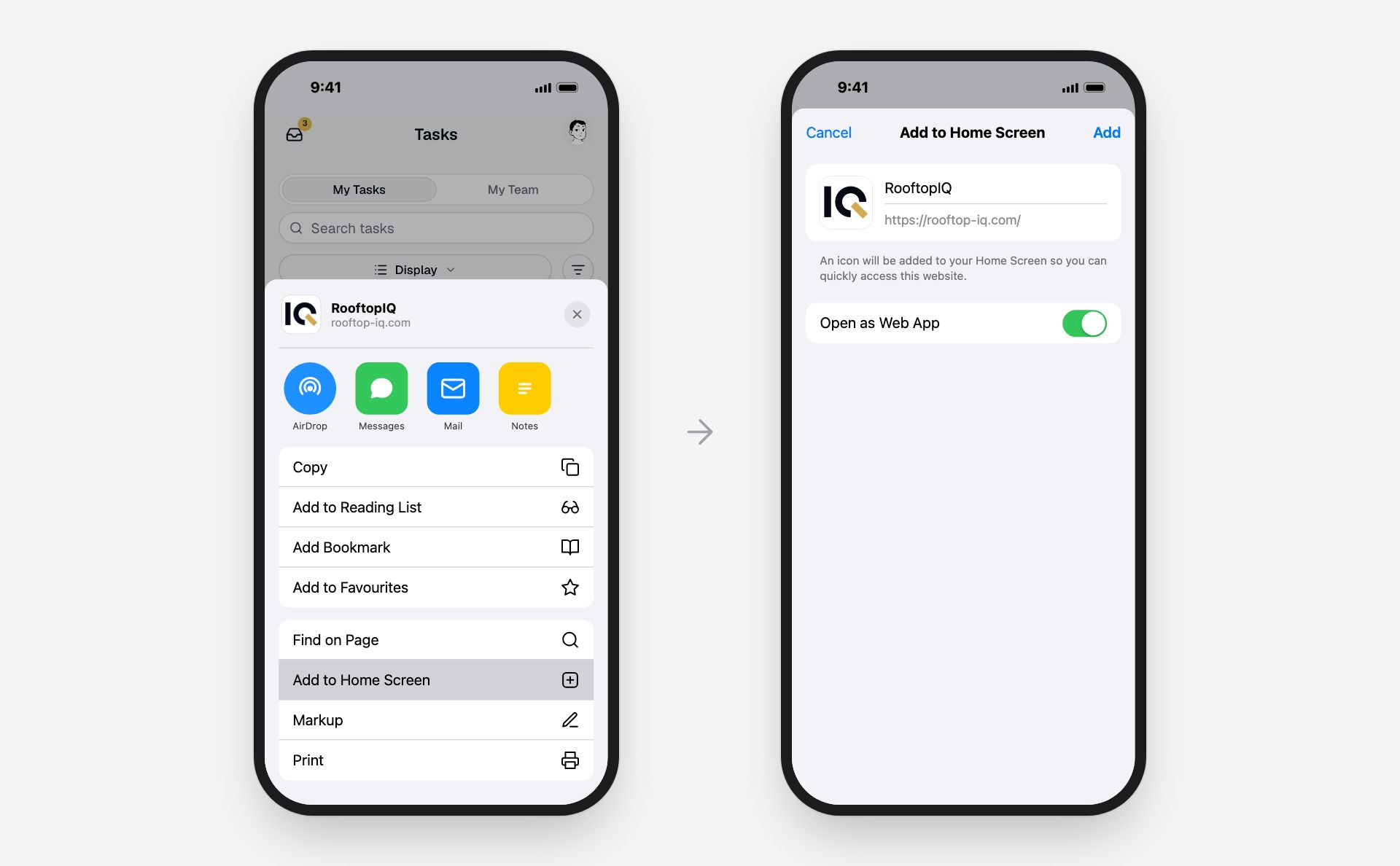
You can also add it yourself:
iPhone
- Open RooftopIQ in Safari.
- Tap Safari's Share button, then Add to Home Screen.
- Tap Add and open RooftopIQ from its new icon.
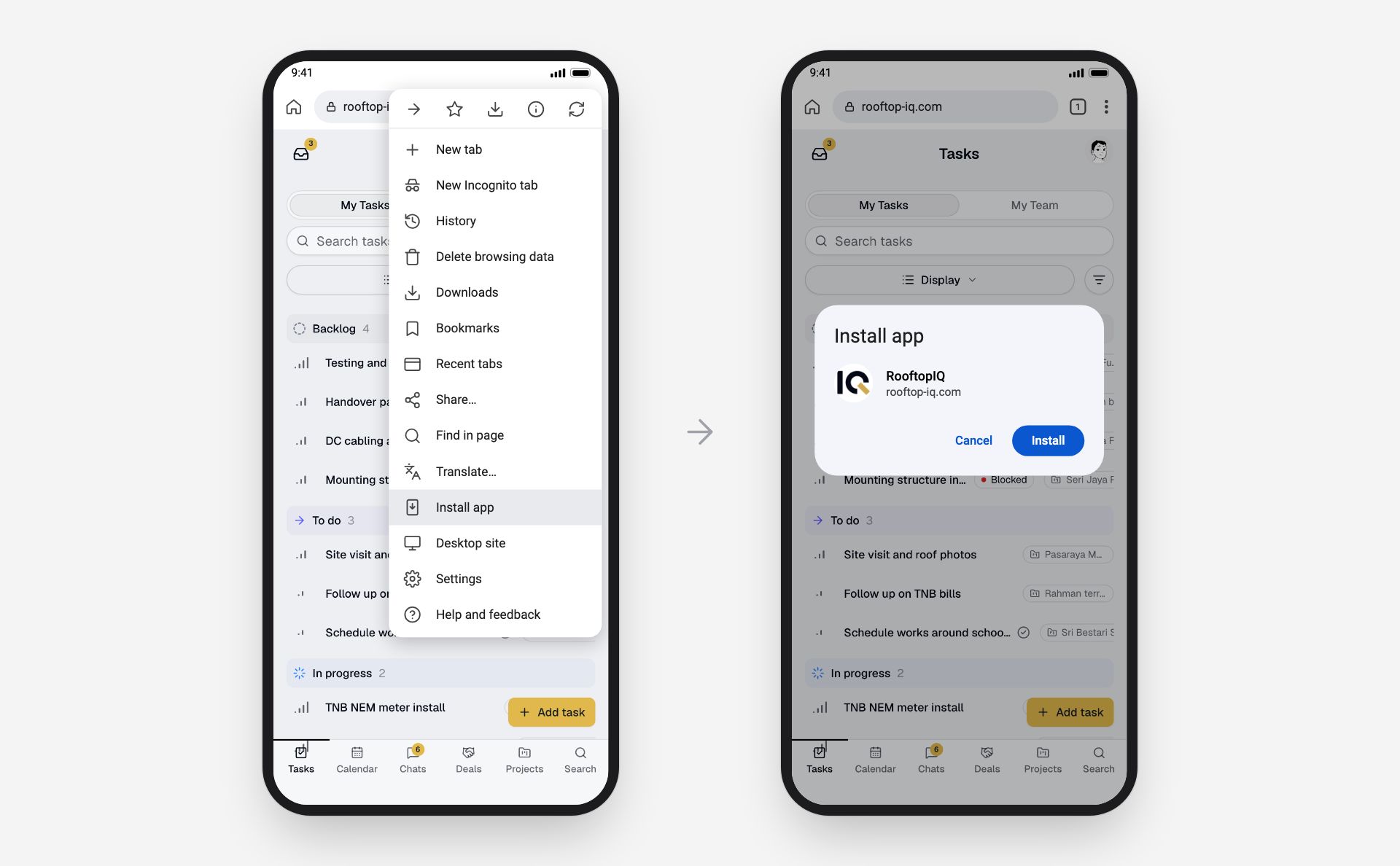
Android
- Open RooftopIQ in Chrome.
- Tap the three-dot menu, then Install app or Add to Home screen.
- Confirm the installation.
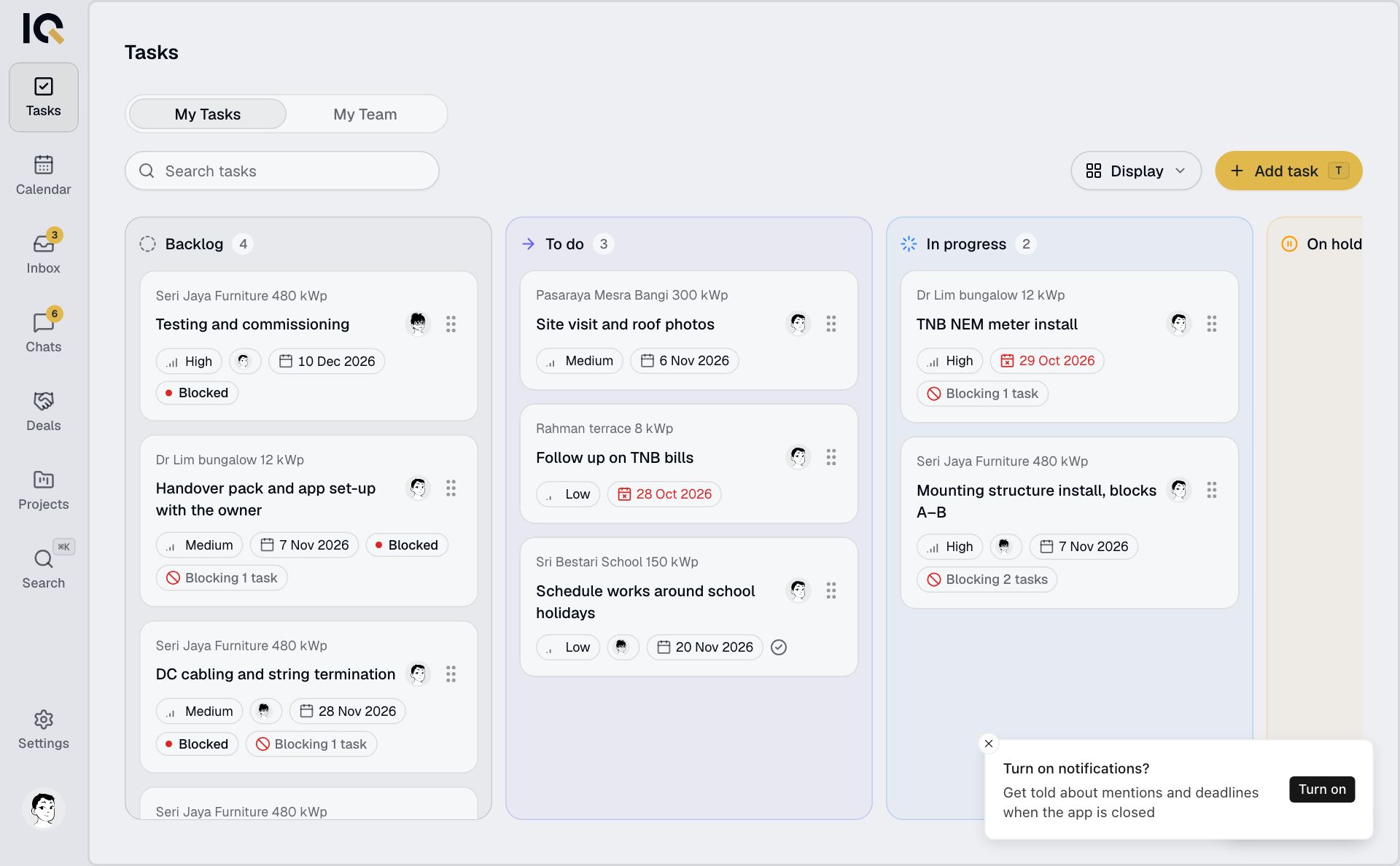
Turn on notifications
When RooftopIQ asks Turn on notifications?, tap Turn on and allow them when your phone asks.
If you missed the prompt, open Settings by tapping your photo. Turn on Push notifications. Use Send test push to check it works.
On iPhone, open RooftopIQ from your home screen to receive notifications. Turn notifications on separately for each device you use.
If notifications are blocked, allow them in your phone or browser settings first.