Work on a task
Update your work, add comments and get approval.
Open a task from Tasks or from a project. Use Details to update the work and Comments to discuss it.
Change the status
Tap the status at the top and choose the new one. When the work is finished, tap Mark as completed.
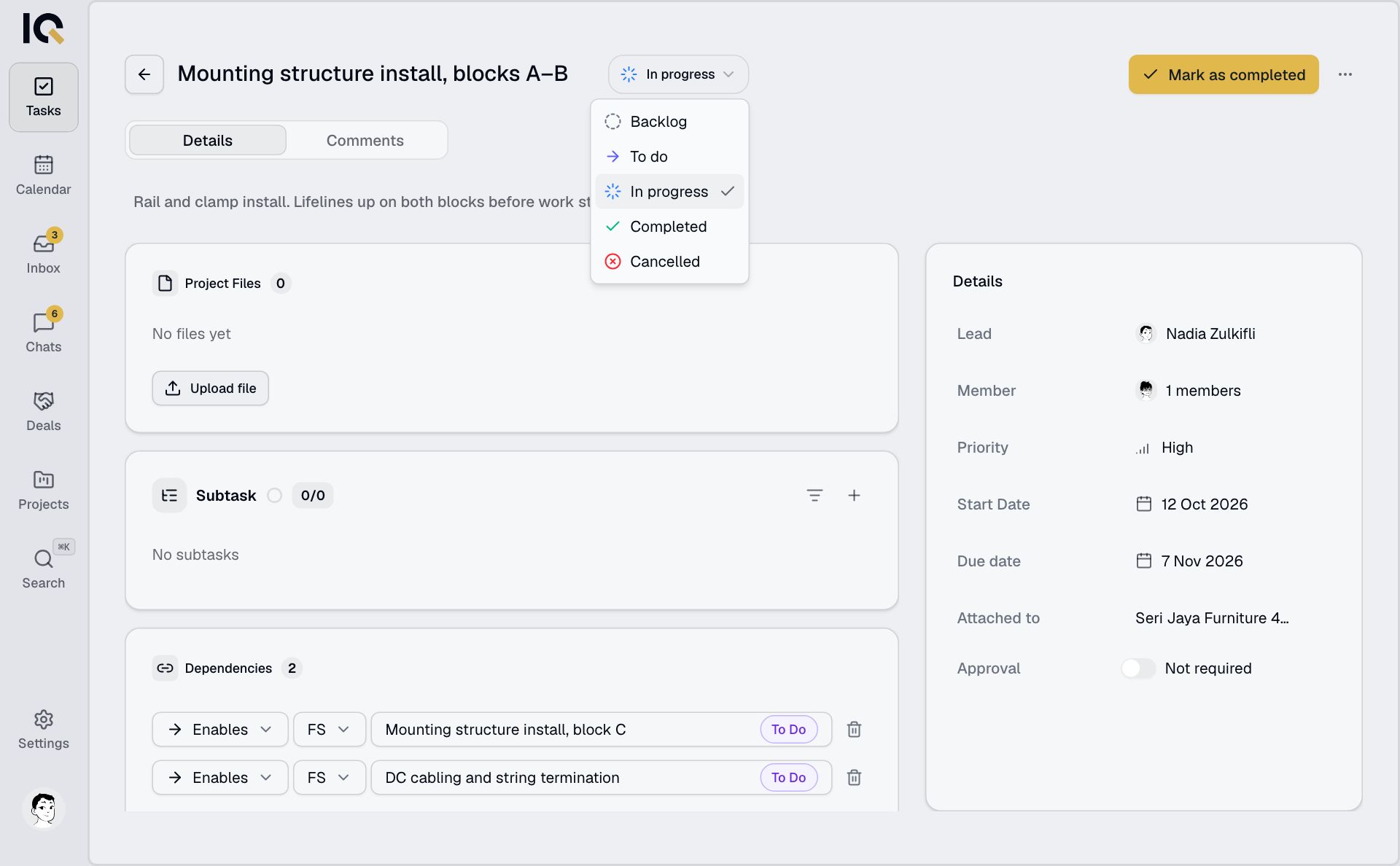
A Blocked task is waiting for another task to finish. Check Dependencies to see which one.
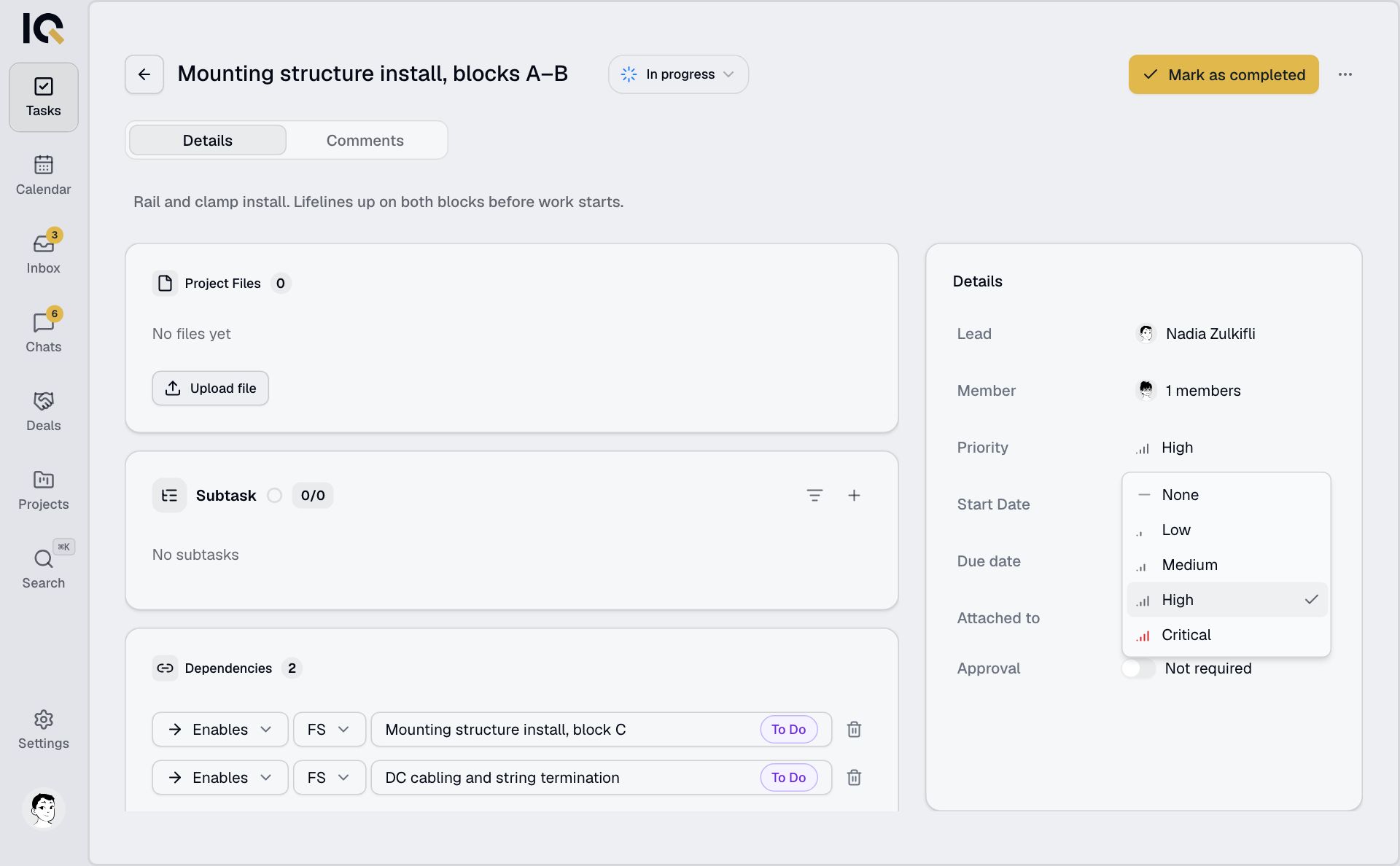
Change dates and people
On Details, tap the lead, members, priority or dates to change them. Changes save automatically. If a field can't be edited, you don't have permission to change it.
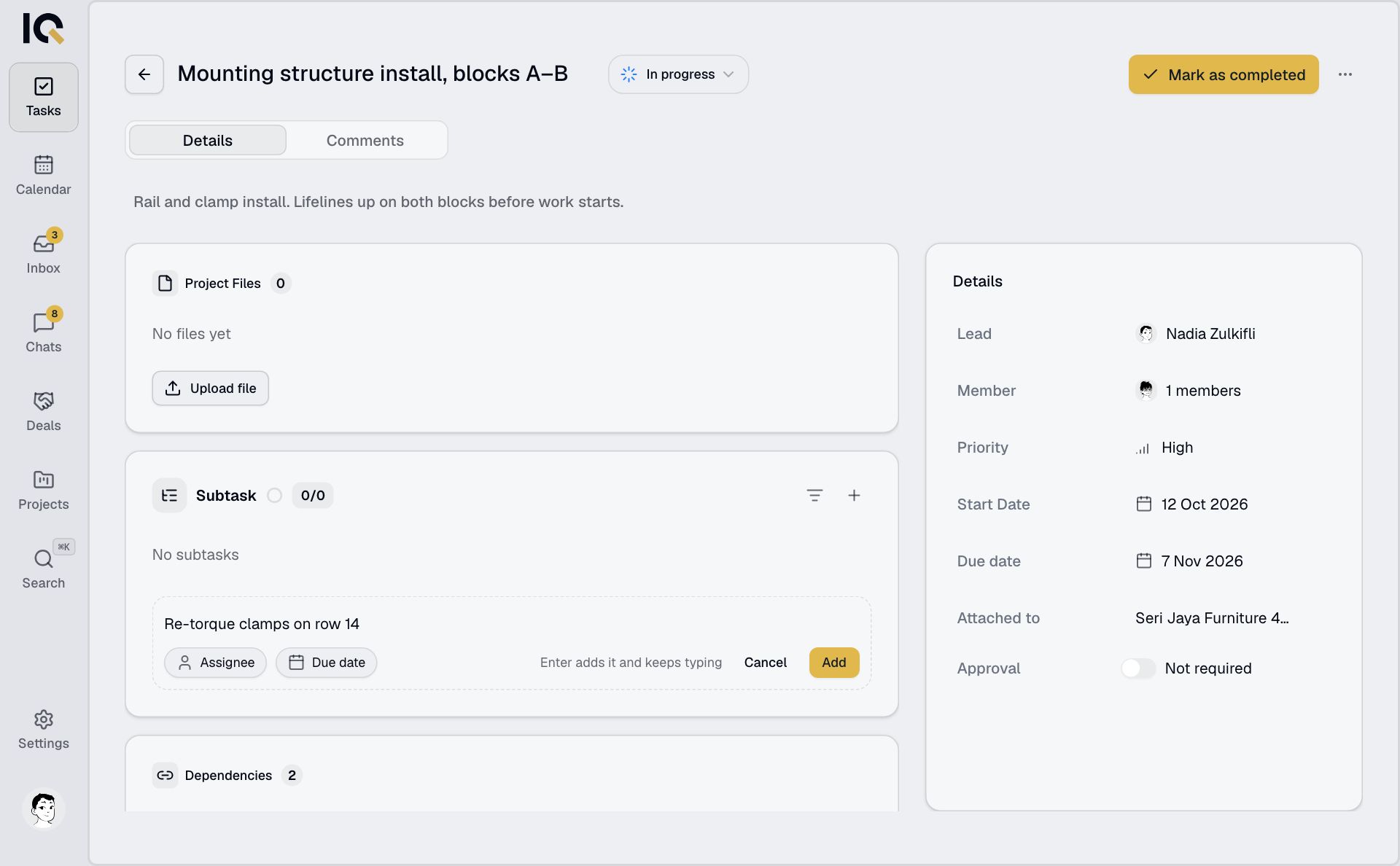
Add subtasks
Under Subtask, tap +, enter a title and choose a person and due date if needed. Tap Add.
Comment on the work
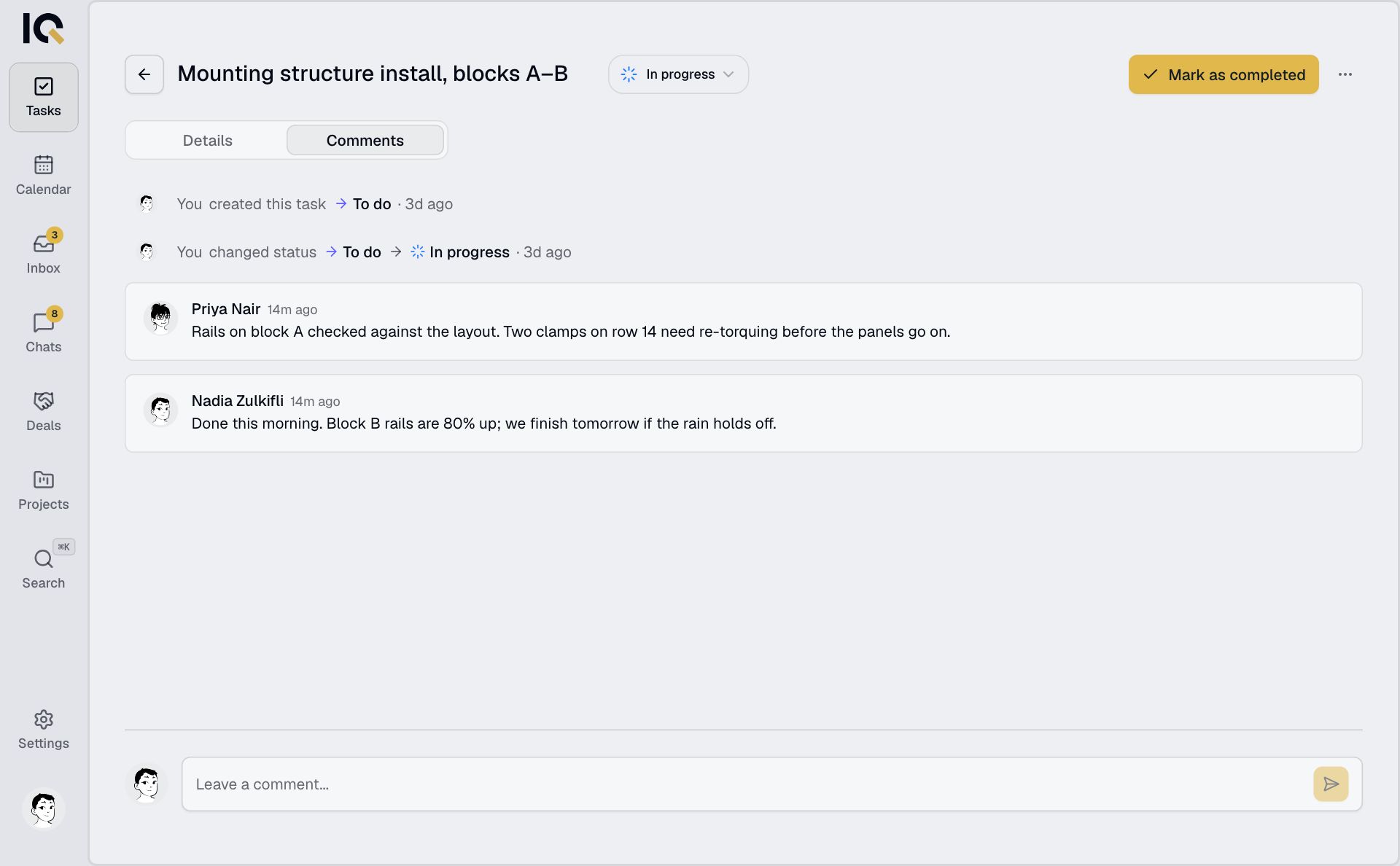
Open Comments, type your update and send. The same tab shows status changes and approval decisions. To attach a photo or document, see Photos and files.
Request approval
For project tasks that need a review:
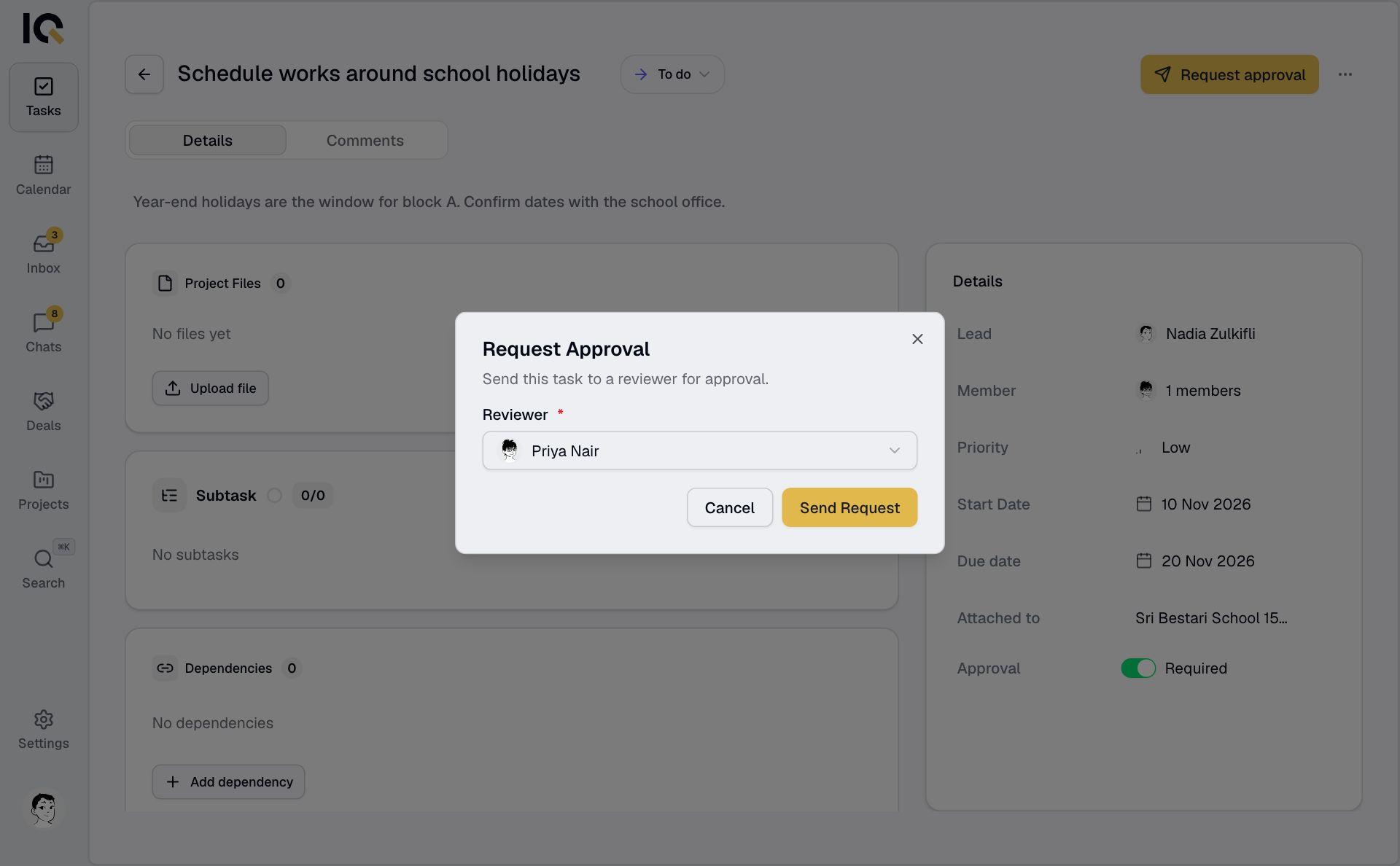
- Tap Request approval.
- Choose a Reviewer.
- Tap Send Request.
The task moves to In review. If the reviewer asks for changes, read their comment, update the work and tap Re-request approval.
Approve or request changes
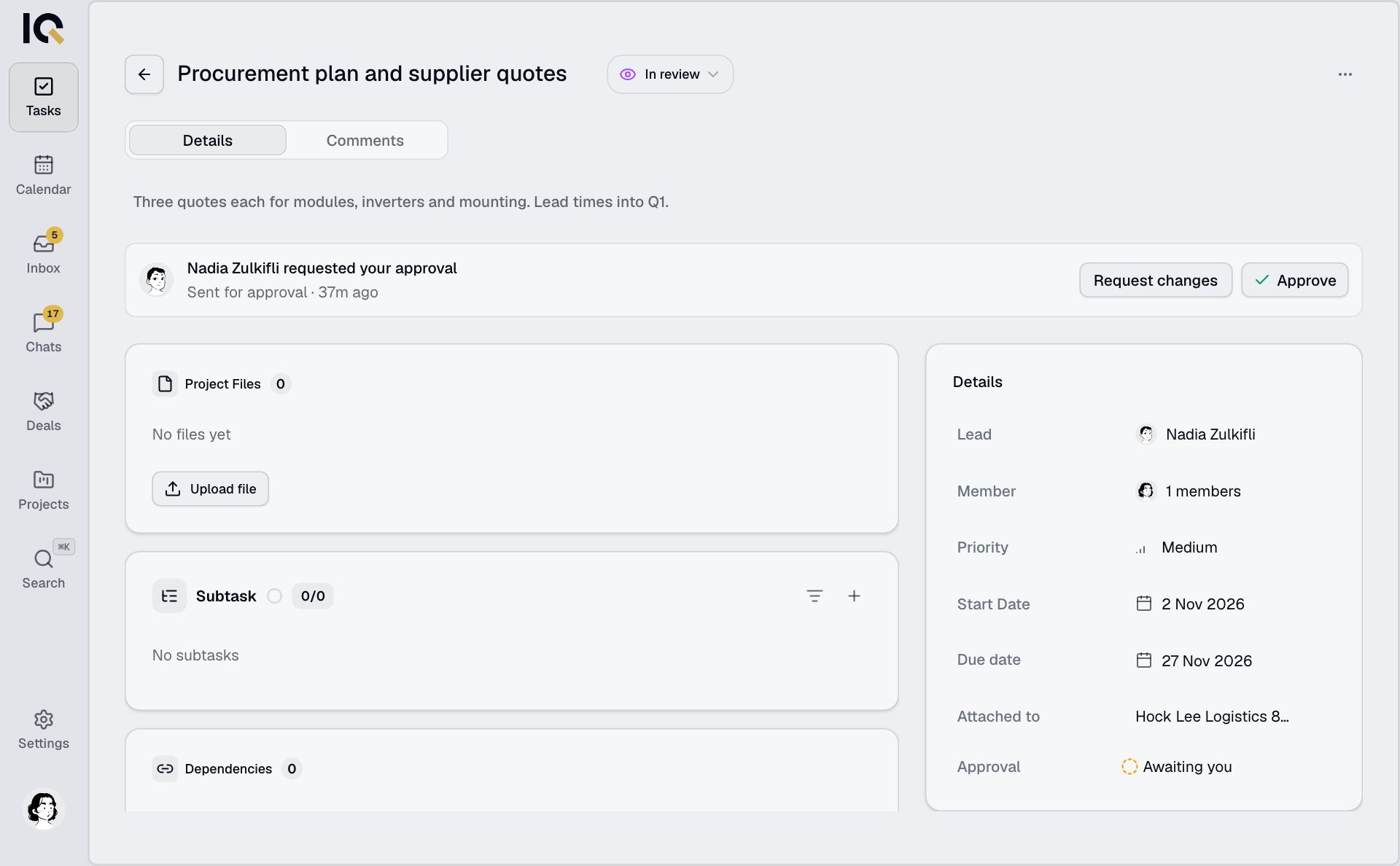
If you're the reviewer, open the task and tap Approve to complete it. To send it back, tap Request changes and explain what needs fixing.
Moving an approved task off Completed clears the approval, so it will need another review.
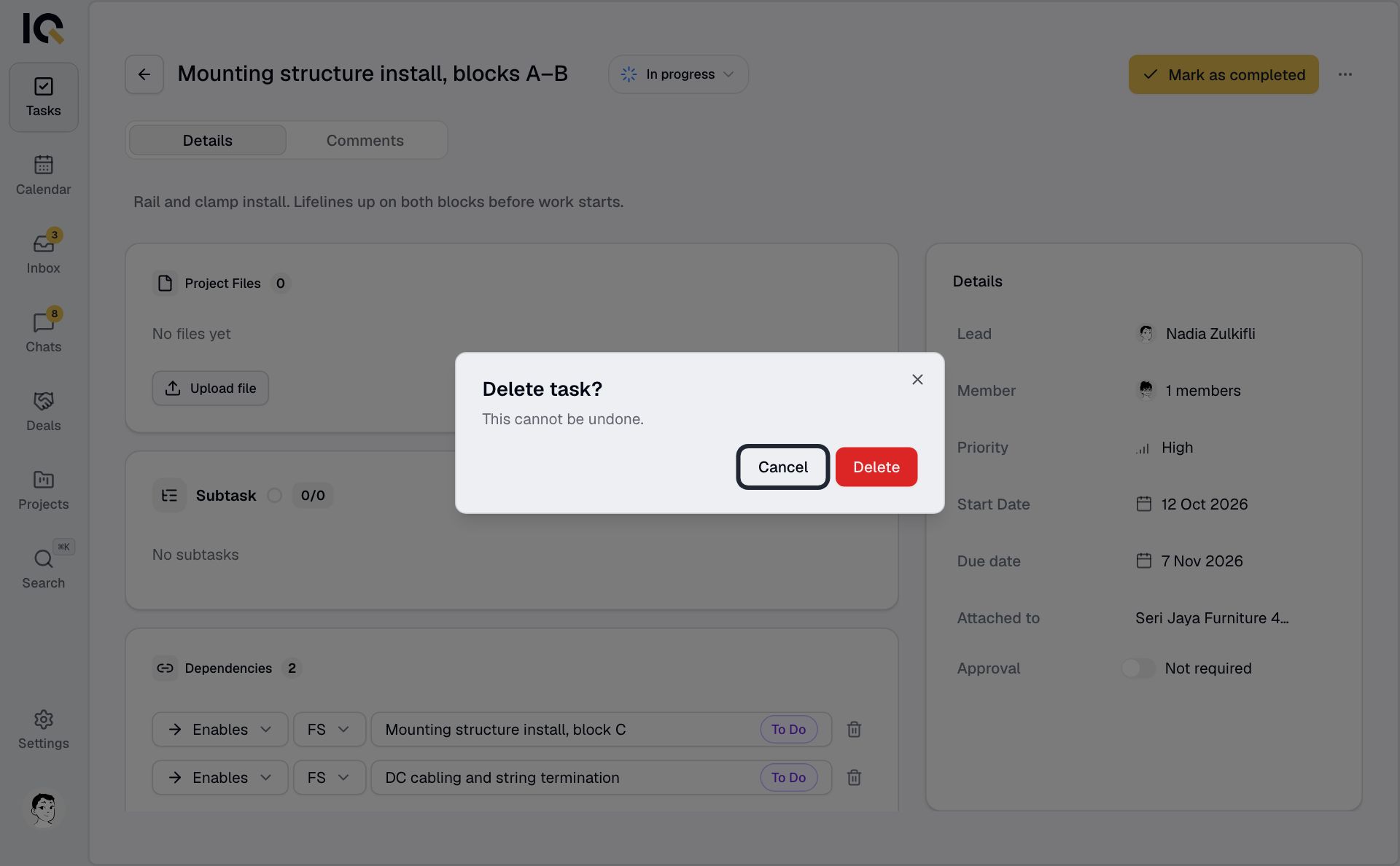
Delete a task
Open ⋯, choose Delete task and confirm. This permanently deletes the task and its subtasks.