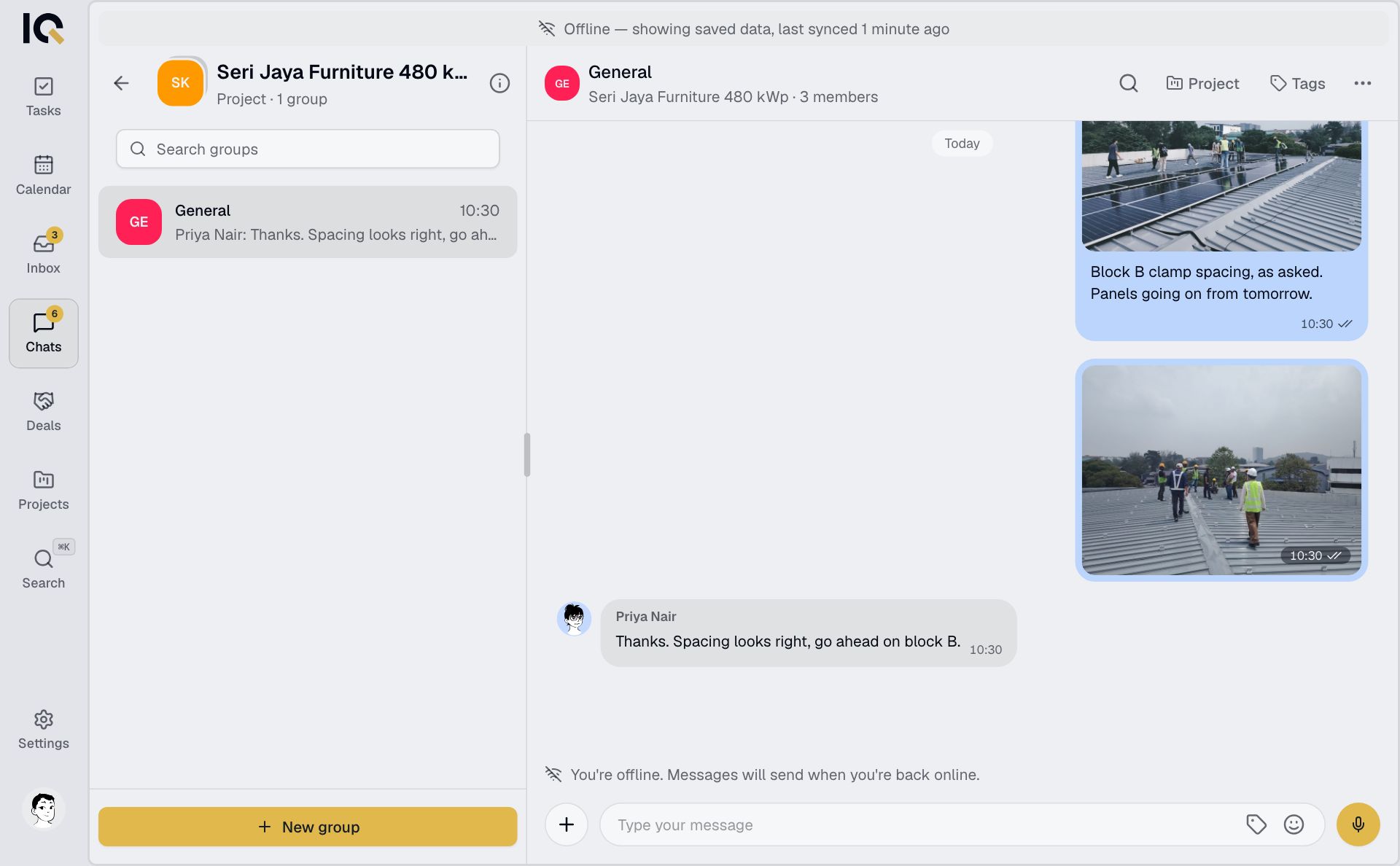
Chats
Message your team, share photos and create tasks from chat.
Open Chats and choose a conversation. For a project or deal, open its row, then choose General or another group.
Send a message
Type your message and tap send. On a computer, Enter sends and Shift+Enter starts a new line.
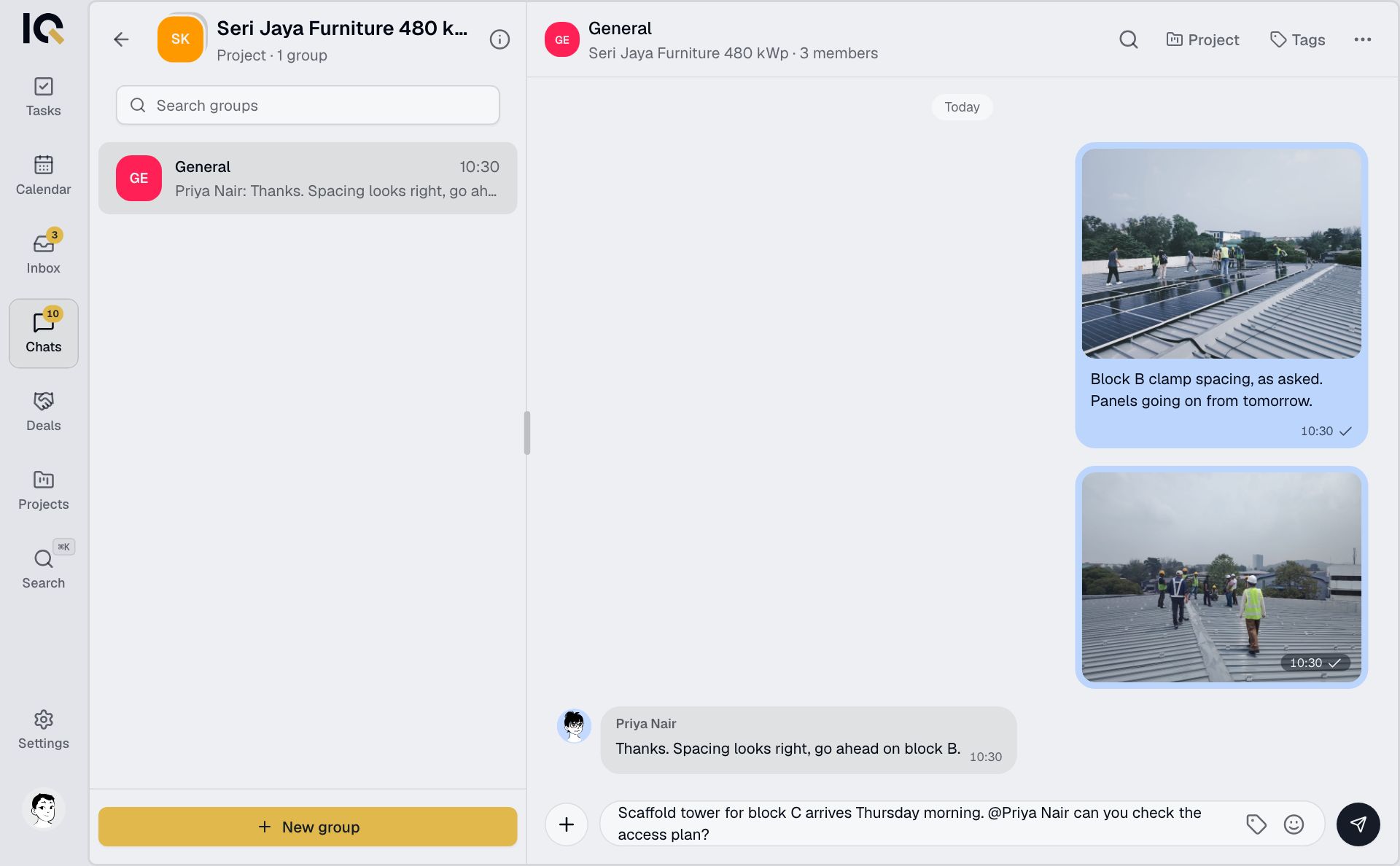
Type @ and choose a name to notify someone. Use @everyone to notify a group.
Turn a message into a task
- Type / in the message box and choose task.
- Choose who leads the task, give it a title and add a due date if needed.
- Send. A task card appears in the chat; select Open task to work on it.
Tasks created in a project or deal chat belong to that project or deal. Use /find to share an existing task.
Send photos and files
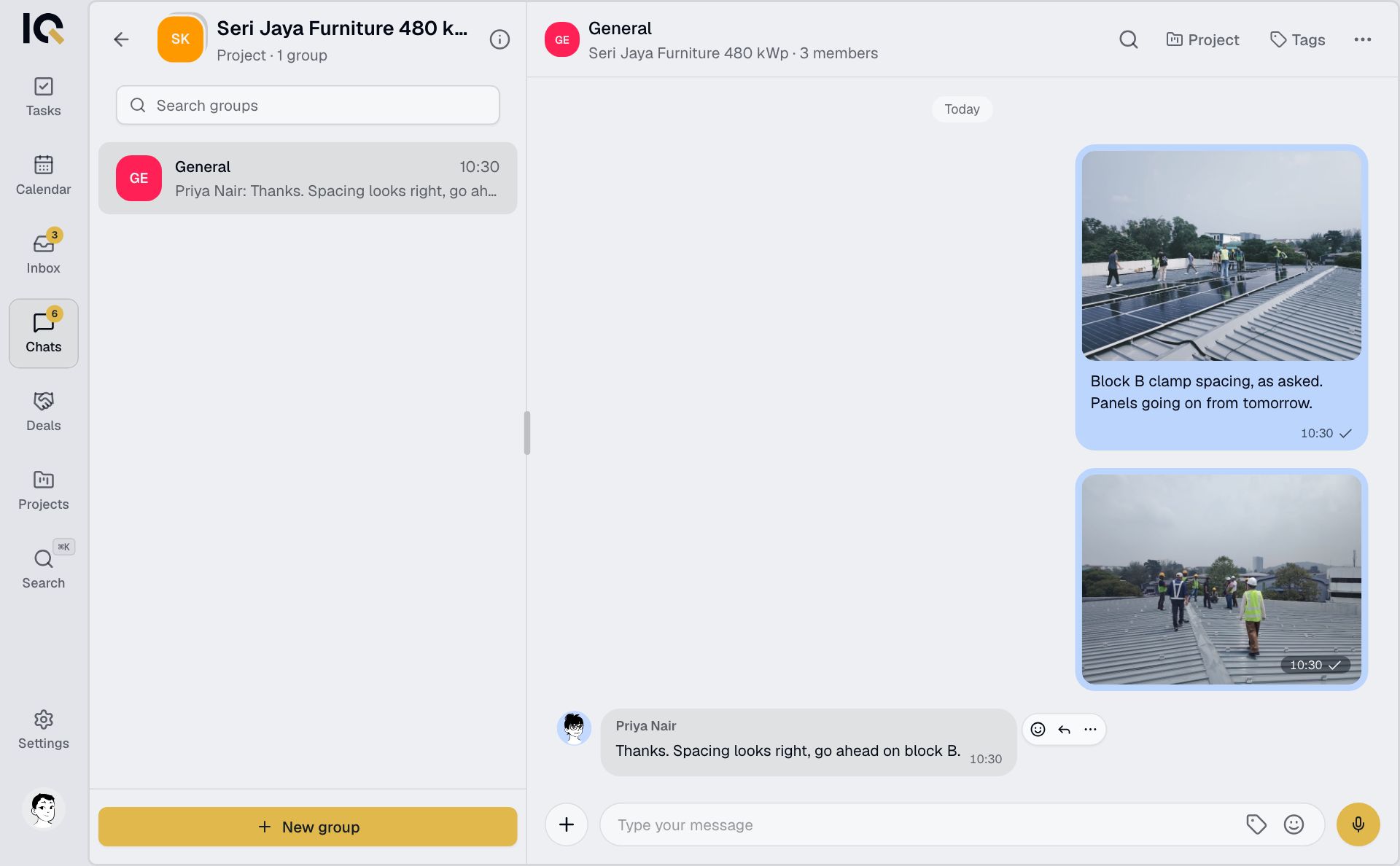
Tap + beside the message box. Choose Camera, Photos or Document, select what to send and add a caption if needed. Tap send.
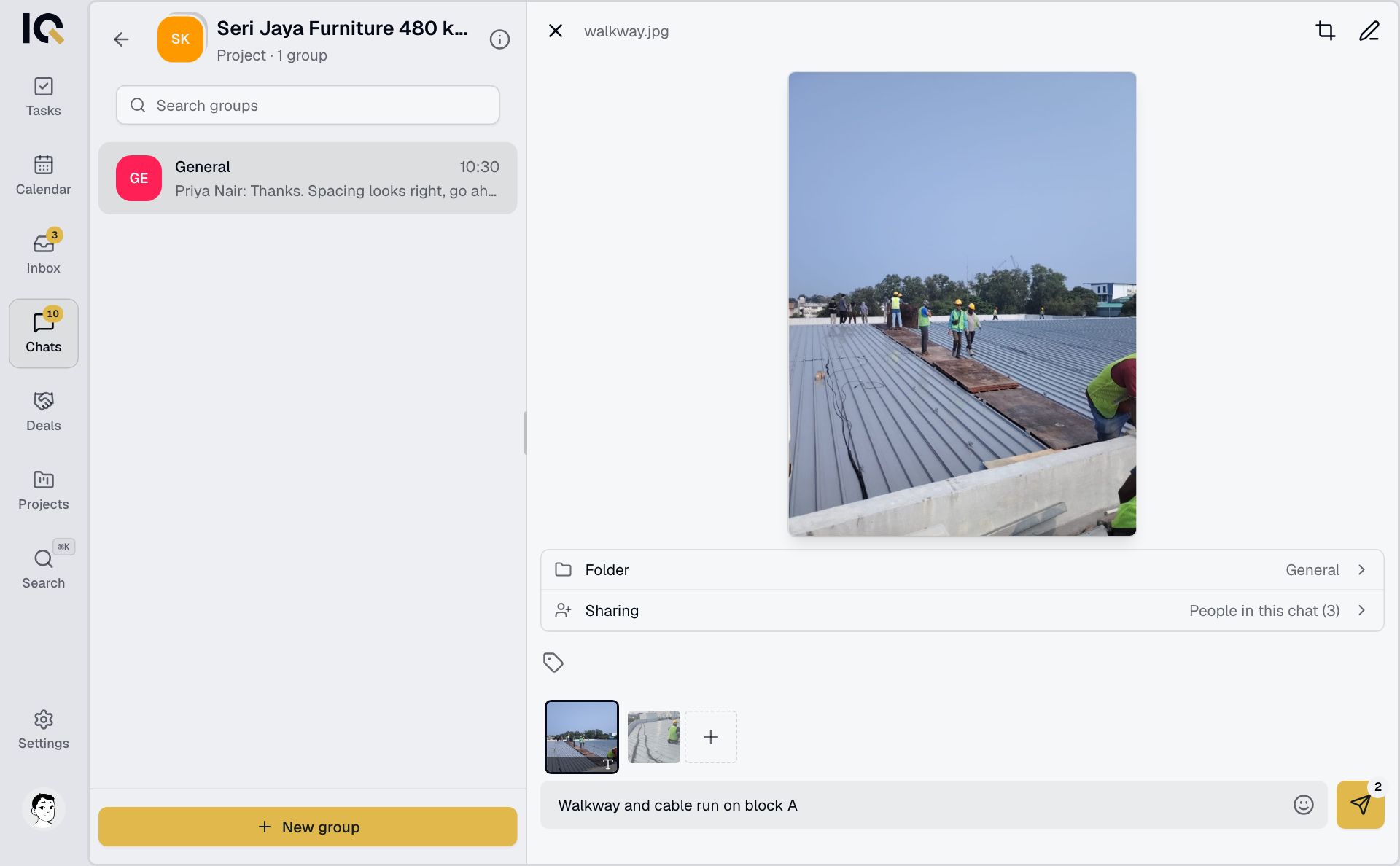
Files sent in a project or deal chat also appear in its Files tab.
Send a voice note
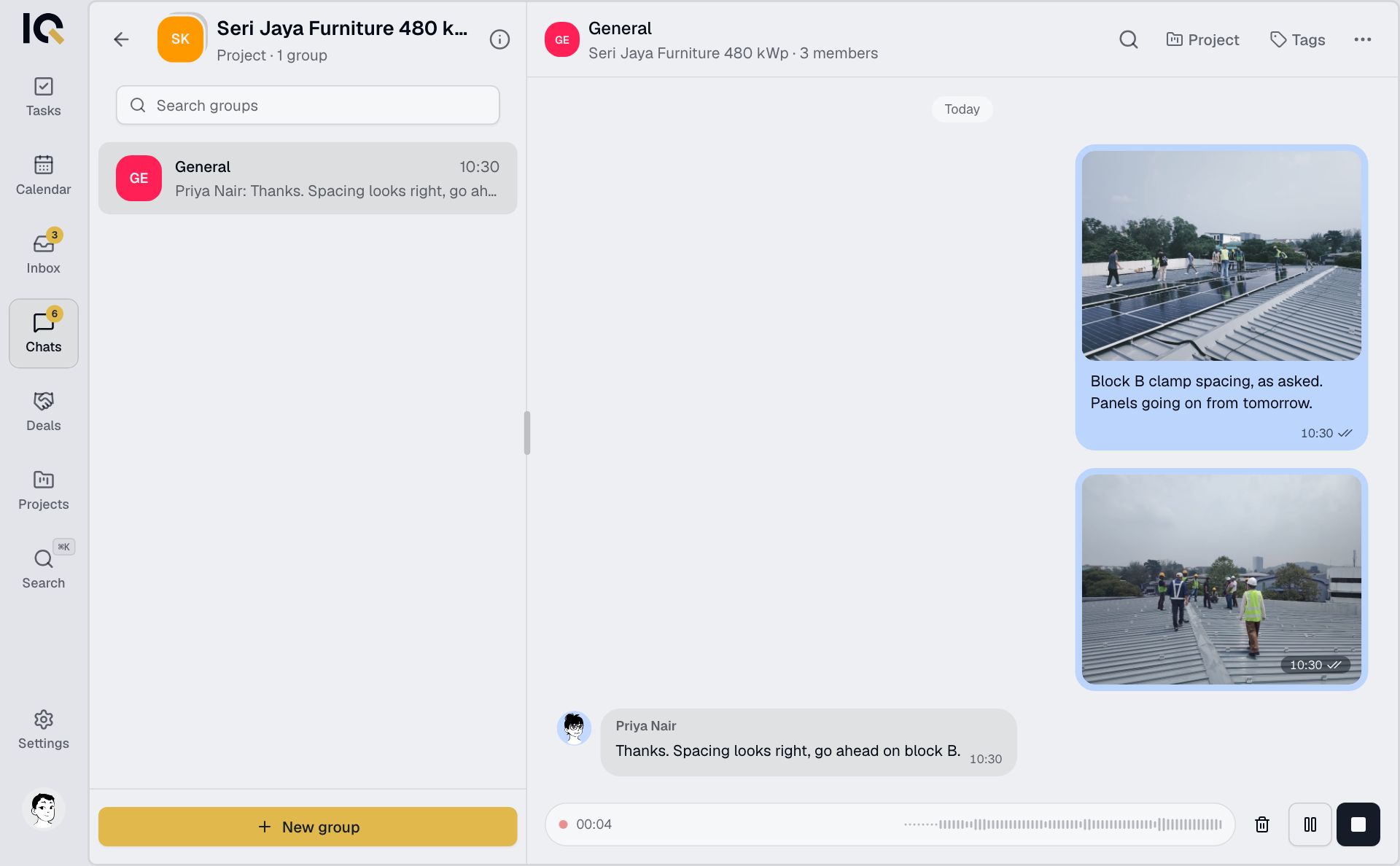
With the message box empty, tap the microphone. Record, stop and tap send. You can play it back first or use the bin to discard it.
Reply to a message
On a phone, swipe the message right. On a computer, hover over it and select the reply arrow. Type your reply and send.
Without a connection
You can read recent messages in chats you've already opened. Text messages wait until you're back online to send. Photos, files and voice notes need a connection.