Share a project
Invite a partner company or a guest to work with you.
The project lead, an admin or a project manager can share a project.
Invite someone
- Open the project and select Share. On a phone, use the share icon beside the project name.
- Enter the person's email under Invite people and select Invite.
- If Invite guest appears, select Send invitation.
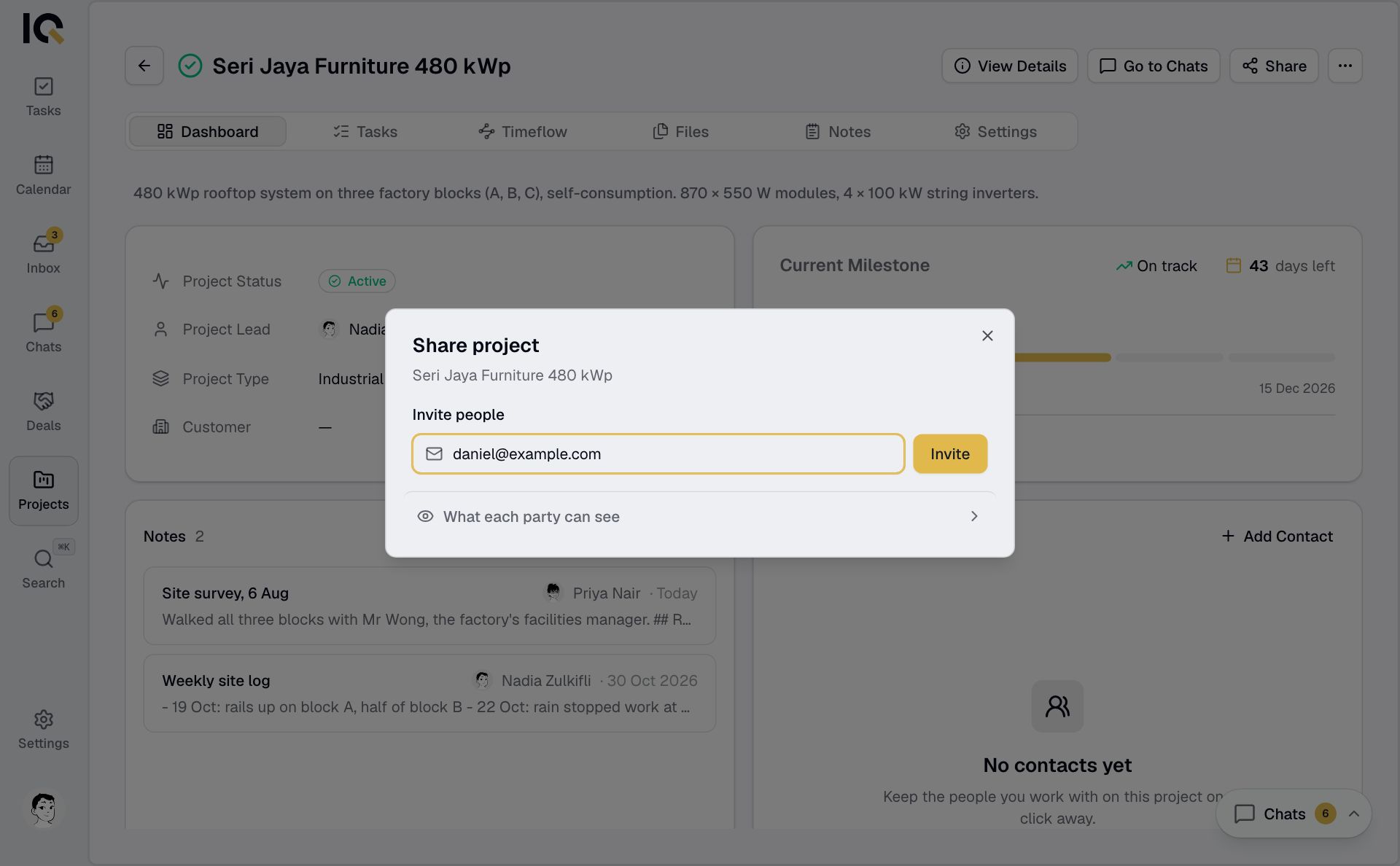
Someone at a company on RooftopIQ receives an invitation to join as a partner. A guest with an account joins straight away; a new guest joins after setting up their account.
What they can access
A partner company can work across the project, including tasks, notes and public files. Guests see tasks assigned to them and chats they belong to.
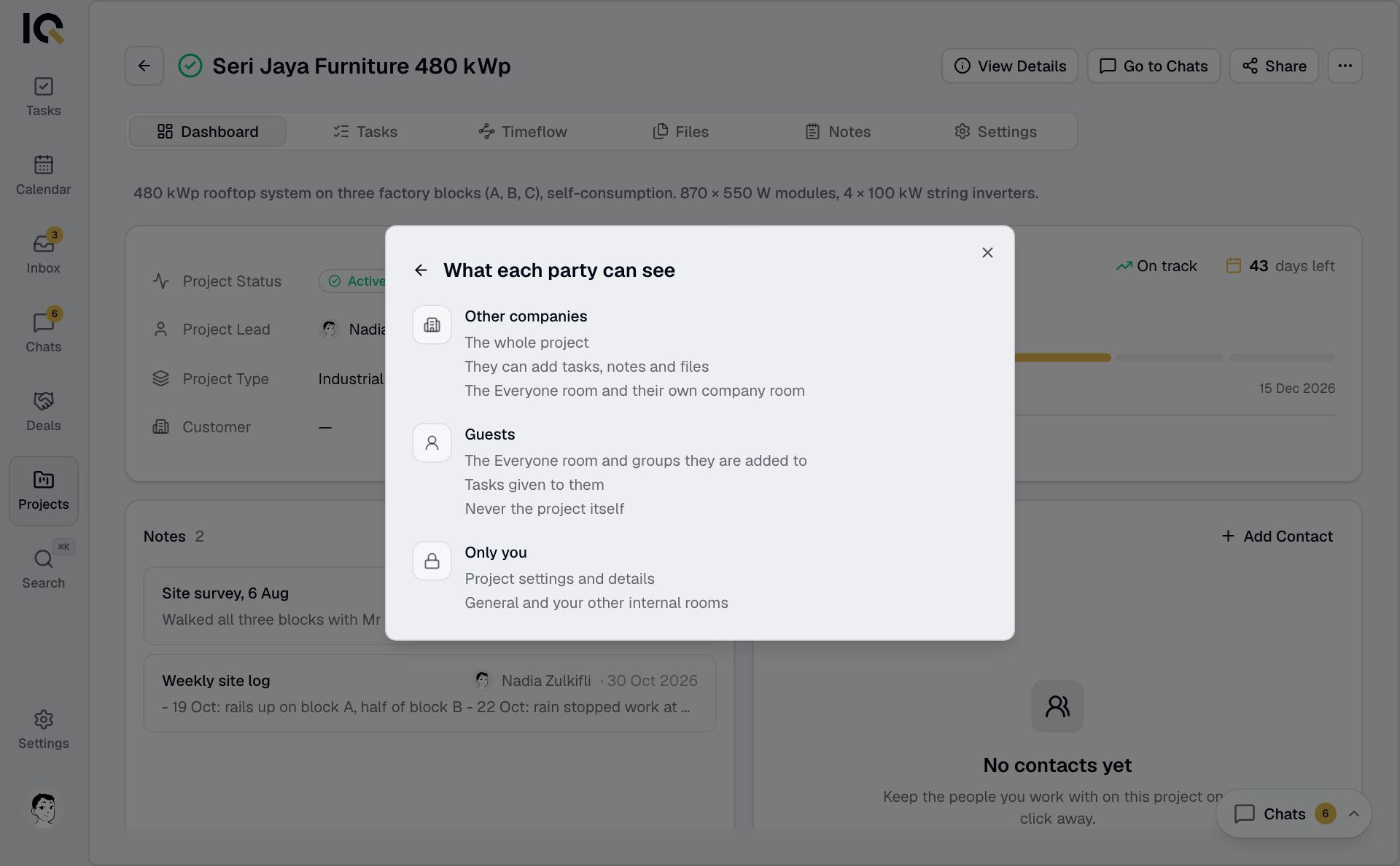
The All chat is shared. Your company's General chat and internal groups stay private. See Working on a shared project.
Manage access
Find Shared with on the project's Dashboard, or behind the info icon on a phone. Open the three-dot menu beside a person, company or pending invitation.
From there, you can resend or cancel an invitation, remove a person or Stop sharing with a company.
Removing access takes effect immediately and removes people from their open tasks. Stopping sharing also removes guests that company invited. The project lead is notified of tasks that need reassigning.
To add your own colleagues, use the project's teams and members in View Details.